Editing PDF text in your browser means changing the actual words in a PDF that contains real, selectable text — a typo, a date, a number — locally. Lemmafour rewrites only the bytes for the text you change, on your device, without uploading the file.
Use Edit PDF text locally when you need to fix a typo, update a date, or correct a number in a document that contains real, selectable text. The workflow is:
- Choose Edit PDF text locally.
- Select LOAD PDF and open the document from this device.
- Choose Edit Text in the toolbar if it is not already active.
- Click real PDF text on the page and type, delete, move, or restyle supported text.
- Use Undo if a text object behaves unexpectedly, then Export the edited PDF.
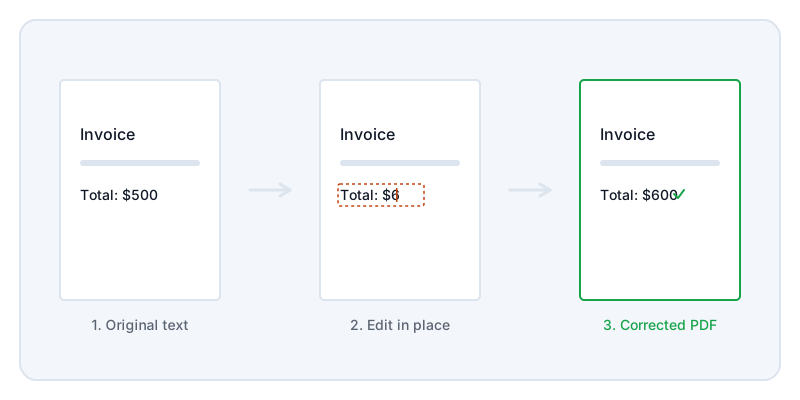
PDF text editing is notoriously fragile. A PDF is designed to look exactly the same on every screen and printer. To achieve that, it stores text with rigid coordinates. When you use the Edit Text tool, you are fighting against that original design. Your browser has to unpack the text fragment, calculate the available space, let you type new characters, and attempt to reflow the paragraph without breaking the rest of the page.
When it works, it feels like magic. But you will encounter documents where a single sentence is split into three separate invisible boxes. This happens because the software that created the PDF prioritized visual accuracy over logical structure. If a text object fragments or behaves unpredictably, use the Undo control. Do not try to force a messy edit.
For sensitive documents like contracts, invoices, or medical records, the way you edit matters as much as the result. Most PDF editors require you to send your document to their servers. They process the edit remotely and send the result back. Lemmafour takes a different approach. The editing engine runs locally on your device. When you click a word and type a correction, that change happens in your browser’s memory. You can verify this by checking the Local - 0 sent indicator or your browser’s Network tab.
One honest limitation is that this tool cannot edit text inside images. If your PDF is a scan of a paper document, there is no text data to edit—only pixels. In those cases, you cannot use Edit Text. You must use tools like Redaction to remove sensitive areas, or Add Text to place visible corrections over the page.
Because PDF text editing can alter the invisible structure of a file, you should always review your work. After you choose Export and download the final file, open it in your standard PDF viewer. Check that the spacing is correct and that the font looks right before you send the document to anyone else.