Splitting a PDF divides one document into several smaller files, while extracting saves a chosen set of pages as a single new file. Lemmafour does both in your browser, so the document never leaves your device.
Use Split PDF when you need to separate a large document into individual chapters, months, or sections. The workflow is:
- Choose Split locally.
- Open one PDF from this device.
- Click scissor lines between pages or type one output range per line.
- Review the current output plan and output prefix.
- Choose Split, then download individual PDFs or the ZIP.
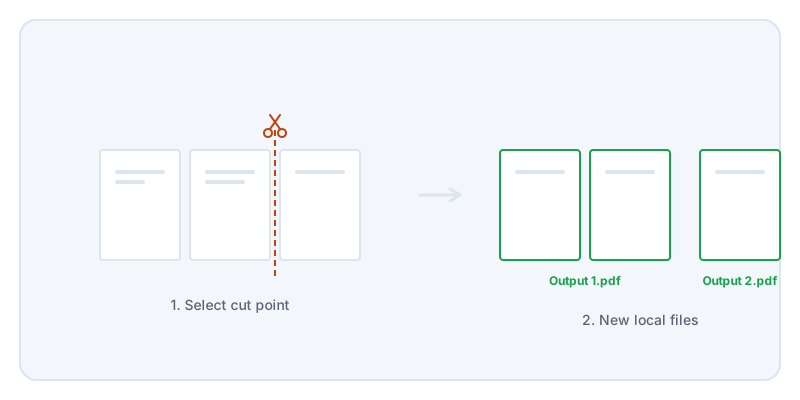
Splitting and extracting are two sides of the same task. Splitting takes one large file and cuts it into several smaller outputs. You might split a twelve-month bank statement into twelve separate monthly files. Extracting pulls specific pages out of a larger file to create one focused output. You might extract just the signature page from a long contract.
Regardless of whether you split or extract, the privacy requirement is the same. Financial statements, legal discovery, and medical records are too sensitive to upload to an untrusted server just to remove a few pages.
With Lemmafour, your browser handles the entire process. When you open the file, your device renders the page previews. When you click the scissor lines to mark your cuts, your browser calculates the new page boundaries. When you choose Split, your device builds the new PDF files and packages them into a ZIP archive. The original document never leaves your machine.
You can confirm this behavior immediately. Open the Local - 0 sent panel or your browser’s Network tab before you start working. You will see that no document data is transmitted during the split operation.
When you split documents, pay attention to repeated information. Financial and legal PDFs often place account numbers, case numbers, or names in the header or footer of every single page. If you split a bank statement to share just one month, that month’s pages will still contain the header information. Splitting is a structural tool, not a redaction tool. If the remaining pages still contain data that the recipient should not see, you must redact that specific text before sharing the new file.