Most online PDF tools process your file on their servers, not in your browser: when you click upload, the document’s bytes travel across the internet to a remote data center, get processed there, and a result is sent back. Tracing that path is the key to understanding the privacy risk.
When you drag a PDF into a standard online tool, the interface is designed to make the process feel instantaneous and magical. A progress bar sweeps across the screen, a gear icon spins, and seconds later, your converted or compressed file is ready to download.
Because the interface is inside your web browser, it is easy to assume the work is happening right there on your computer. But the vast majority of web-based PDF editors do not process files on your machine. They operate on a client-server model. Your computer is the client, and their data center is the server.
When you process a document containing financial records, legal strategy, or medical history, you need to know exactly where those bytes are traveling, who is processing them, and what happens to them when the job is done. To understand the risk profile of an online PDF tool, you have to trace the exact physical path your document takes from the moment you drop it into the browser.
The upload pipeline
The journey of your document begins the moment you select the file and click “Upload” or “Process.”
First, your browser reads the file from your hard drive and packages it into a network request. It establishes a secure connection with the tool’s server using TLS (Transport Layer Security). This is what the padlock icon in your browser’s address bar signifies. TLS encrypts the file in transit. If someone is monitoring the Wi-Fi network at your local coffee shop, they cannot read the contents of the PDF as it flies through the air.
The encrypted package travels through your local internet service provider, across various internet backbones, and eventually arrives at a data center—often operated by Amazon Web Services, Google Cloud, or Microsoft Azure, rather than the PDF company itself.
At the data center, the request hits a load balancer. The load balancer routes your file to an available processing server. Once your document arrives at the processing server, the TLS encryption ends. The server decrypts your PDF into its active memory (RAM) so the software can actually read it.
If you asked the tool to merge two files, the server’s CPU executes the merge command, creates a brand-new PDF, and writes that new file to a temporary storage drive in the data center. The server then sends a message back to your browser with a download link pointing to that new file.
Storage and retention realities
What happens to your document after you click download? This is where the mechanical reality of cloud computing clashes with marketing promises.
Almost all online PDF tools have a privacy policy stating that they automatically delete your files after a certain retention period—usually between one and twenty-four hours. This retention period exists because the server needs to hold the file long enough for you to successfully download it, even if your internet connection drops momentarily.
From a mechanical standpoint, this means your highly sensitive document is sitting unencrypted (or encrypted with a key the company controls) on a cloud storage bucket for hours. You have to trust three things:
- You have to trust that the company’s automated deletion scripts run perfectly, every single time, without crashing.
- You have to trust that their cloud provider did not run an automated snapshot backup of that storage bucket while your file was resting there.
- You have to trust that no other internal system — logging, analytics, indexing, model training — ever touches the file while it sits there. These are not accusations against any service; they are simply the parts of the pipeline you have no way to check.
What you can and cannot verify
The fundamental problem with the cloud model is verifiability.
When you use a cloud-based tool, you can verify the TLS connection. You can read their privacy policy. You can verify that they hold SOC 2 or ISO certifications. But you cannot verify the code running on their server. You have no technical capability to audit their deletion scripts, inspect their server logs, or prove that your document was actually destroyed. You are forced to operate entirely on trust.
For many documents—a restaurant menu, a public flyer, a blank form—that trust is perfectly acceptable. The convenience of cloud processing outweighs the negligible privacy risk. But for an unredacted bank statement, an unfiled patent application, or a patient intake form, operating on blind trust violates basic data security principles.
The local alternative
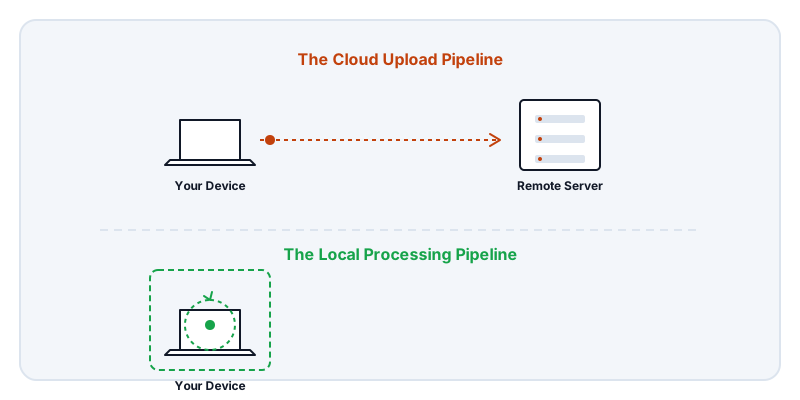
The alternative to the cloud model is local processing. Over the last few years, browser technology has advanced significantly, primarily through a technology called WebAssembly, which allows complex, high-performance software—like a complete PDF rendering and editing engine—to run directly inside your web browser.
This fundamentally flips the architecture. Instead of sending your sensitive file to the software engine in the cloud, the cloud sends the software engine to your file.
When you load a local tool, such as Edit a PDF without uploading it or Merge PDFs offline in your browser, the web page downloads the Lemmafour PDF engine into your browser’s temporary memory. The application loads just like any other website. But when you drag your PDF into the window, the file never crosses the network.
Your device’s CPU reads the file. Your device’s memory holds the working draft. When you apply a redaction or split a page, your device performs the mathematics. And when you click export, the new file is written directly from your browser to your hard drive.
Because the processing happens on your machine, there is no transit encryption to worry about, no load balancers, no temporary cloud storage buckets, and no retention policies to trust. The document never leaves your control. You can explore this architecture further in our How local PDF processing works explainer, or see how it compares directly in Local PDF editing vs upload tools.
How to verify ANY tool yourself
The best part of local processing is that you do not have to take our word for it. You have the tools to verify the privacy of any web application built right into your browser.
If you want to know whether a PDF tool is secretly uploading your documents, you can monitor its network traffic.
- Open the PDF tool in your browser (Chrome, Edge, Firefox, or Safari).
- Right-click anywhere on the page and select Inspect to open the Developer Tools.
- Click the Network tab.
- Now, drag your PDF into the tool and perform an action like merging or compressing.
Watch the Network tab. If you see a massive data payload transmitting—often taking several seconds depending on the file size—the tool is sending your document to a remote server.
If you run this same test on a local tool, the Network tab will remain quiet. You will see the initial web page and scripts load, but when you interact with your document, no file data will transmit. The proof is right there on your screen. You should always trust verifiable mechanics over marketing promises.