Removing a watermark from a PDF means deleting a distinct object — a logo, header, footer, or draft stamp — from the page. When the same object repeats, Lemmafour’s Find Similar workflow can locate and remove matching copies in your browser, without uploading the file. Individual object removal is free; exporting repeated cleanup requires a Day Pass or Pro.
Use Clean the PDF locally when a document is covered in draft stamps, company logos, or repeated header text that you need to remove. The workflow is:
- Choose Clean the PDF locally.
- Open the PDF.
- Select Clean in the toolbar.
- Click the watermark, logo, header, or footer object you want to remove.
- Use Find similar when needed, review matches, remove them, and Export.
You can inspect Find Similar results in Pro Preview before paying. A Day Pass or Pro is required only when you export the repeated cleanup; the editor can restore those recurring marks for a free export without changing your other edits.
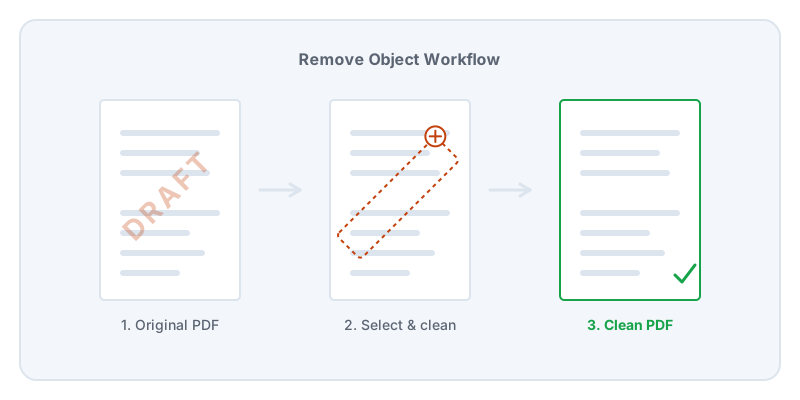
Watermarks exist in PDFs in two entirely different ways. Sometimes, a watermark is a distinct object layered on top of or underneath the page text. This is common when you export a file from Word or use a PDF editor to stamp “DRAFT” across the page. Because the watermark is a separate mathematical object, Lemmafour’s Clean tool can select it and delete it without damaging the text beneath it.
Other times, the watermark is baked directly into the page. This happens when a document is printed with a watermark and then scanned back in. In a scanned PDF, the whole page is just one photograph. You cannot select the watermark object because there is no object—only colored pixels. If you try to remove it, you have to use Crop to cut off the margins or whiteout boxes to cover the area.
When dealing with true watermark objects, the challenge is repetition. A logo might appear on all fifty pages of a document. Instead of clicking it fifty times, you can use the Find similar professional feature. The browser engine will scan the structure of the PDF, locate objects that match the one you selected, and allow you to remove them in bulk.
Removing watermarks and logos from internal documents is a standard cleanup task, but doing it online introduces a privacy risk. Standard cleanup tools require you to upload the file. Lemmafour performs the object detection and removal locally on your device. The document is analyzed in your browser, and the cleaned PDF is generated there too. You can observe the Local - 0 sent indicator to verify that the file never leaves your computer.
Always review the cleaned PDF before sharing it. Make sure that the Find similar process did not accidentally remove a required logo or a piece of text that happened to share the same structural formatting as the watermark.