You download a form, fill in every field, save it, and email it back. A day later comes the reply: the form you sent is blank.
You open your copy and it is not blank. Every field is filled, exactly as you left it. Nothing about the file is corrupt, nothing was lost in transit, and neither of you is doing anything wrong. You are both looking at the same file and seeing different things.
This is one of the most demoralising failures in everyday document work, because it usually surfaces after a deadline has passed. The mechanism behind it is worth ten minutes of your time, because once you know it, you can guarantee it never happens again.
A form field stores its contents twice
Here is the part almost nobody knows: a PDF form field holds your answer in two separate places, for two different purposes.
The first is the value. This is the data — the literal string Anna Meyer recorded against the field named applicant_name. It is what a computer system reads when it processes your submission.
The second is the appearance stream. This is a small set of drawing instructions attached to the field that says how to paint the value onto the page: which font, what size, what colour, positioned where. It is what a human sees.
Those two things are stored independently, and — this is the crucial bit — the appearance stream is what actually gets drawn. A PDF viewer rendering a page does not read your field values and typeset them. It executes the drawing instructions it finds.
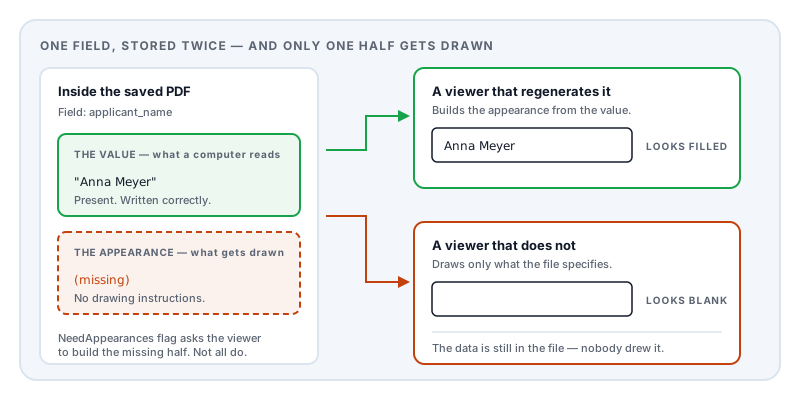
So when a form-filling tool writes your answer into the value but does not generate a matching appearance stream, the file ends up in a strange half-state: the data is genuinely there, and there is nothing to draw.
The flag that decides who sees what
PDF has an official answer for this situation. A form can carry a flag called NeedAppearances. Setting it to true means, in effect: “the appearance streams in this document are missing or out of date — viewer, please generate them from the values before displaying.”
A tool that fills a form without drawing the appearances is supposed to set this flag. And a viewer that encounters it is supposed to do the work.
In practice, support is uneven. Adobe’s desktop products honour the flag and regenerate the appearances, so the form looks correctly filled. Several browser-based and mobile viewers do not — they render exactly what the file tells them to draw, find no instructions, and show you an empty box.
That single inconsistency accounts for most “it came back blank” reports. Your viewer regenerated the missing appearances. Theirs did not. The file is identical; the interpretation is not.
The other four causes
You filled an XFA form and they opened it somewhere else. XFA is the Adobe-proprietary form layer that was left out of the PDF 2.0 standard. Your answers were stored in an XML layer that only Adobe’s desktop software renders. Any other viewer falls back to the ordinary PDF underneath — which is the blank original. This produces a particularly complete blankness: not one field survives.
You filled it in a browser preview and saved with the browser’s own control. Some browser PDF viewers historically kept typed values in memory for the session and did not write them into the downloaded file. The page looked filled until you closed the tab.
You sent the original, not your saved copy. Mundane, and it happens constantly. Browsers put the downloaded original and your saved version in the same folder with near-identical names, and email clients helpfully suggest the recent one.
You filled it, then the recipient opened it on a phone. Mobile viewers are the least likely to regenerate appearances and the least likely to support XFA. A form that displays fine on two desktops can still arrive blank on a phone.
How to check before you send
Emailing the form to yourself is not a test — you will open it in the same application you filled it in, which is precisely the one that renders it correctly.
The real test takes thirty seconds: open your saved file in a different program from the one you used to fill it. If you filled it in Adobe Reader, drag the saved file into a browser window. If you filled it in a browser, open it in a desktop reader, or send it to your phone.
If the fields are populated in both, you are safe. If the second viewer shows blanks, you have just caught the failure before your recipient did.
The step that ends the problem permanently
Flatten the form before you send it.
Flattening takes each field’s current appearance and paints it permanently onto the page as ordinary page content, then removes the field structure. Afterwards there are no fields, no values, no appearance streams, and no flag for anyone to honour or ignore — just a page with your answers printed on it, drawn the same way as the form’s own labels.
Every viewer on every platform renders that identically, because there is nothing left to interpret. It is the same reason a scanned page never looks different on different machines.
The trade-off is real and worth stating: a flattened form is no longer machine-readable, and it cannot be edited afterwards. If you are submitting to a system that extracts field data automatically, flattening removes what it needs. That case is rare for anything you are asked to email back, and the instructions will usually say so explicitly. When in doubt, send both: the flattened copy so a human can read it, and the unflattened one so a machine can.
There is a smaller benefit too. Flattening finalises the document — the recipient cannot alter your answers and forward them onward. For a signed declaration or a contract schedule, that matters.
Where Lemmafour fits
Fill PDF forms writes both halves — the field value and a matching appearance stream — so the filled form renders the same whether the recipient opens it in a desktop reader, a browser, or on a phone. It does not rely on the recipient’s viewer being willing to do the work.
It also flags fields it finds frozen or non-fillable when you open the document, so you learn about a locked form at the start rather than after typing into it.
If you prefer to skip form structure entirely, Add text to PDF places your answers directly onto the page. That output is flat by construction — it cannot come back blank, because there was never a field to misinterpret.
Both run entirely in your browser. Given that the fields on a form are usually your name, address, income, medical history, or bank details, keeping the filled copy on your own device rather than passing it through someone’s server is not a small detail.
Sources and further reading
- ISO 32000-2:2017, the PDF 2.0 specification — defines interactive form dictionaries, field value entries, widget annotation appearance streams, and the NeedAppearances flag.
- ISO 32000-1:2008 — the earlier edition, where the same appearance-stream model is specified and XFA appears only as an optional extension.
- Mozilla pdf.js: form appearance generation — a public implementation record of a browser viewer adding appearance regeneration, illustrating that this behaviour is a viewer choice rather than a file property.
- ISO 19005-2, PDF/A-2 — the archiving standard, which requires appearance streams to be present rather than generated on the fly.