
You open a form, click on the blank line where your name goes, and nothing happens. No cursor, no highlight, no typing. The document looks exactly like a form, and it behaves like a photograph.
There are four distinct reasons this happens, and they are not variations of one problem — they have different causes and different fixes. Working out which one you are looking at takes about ten seconds.
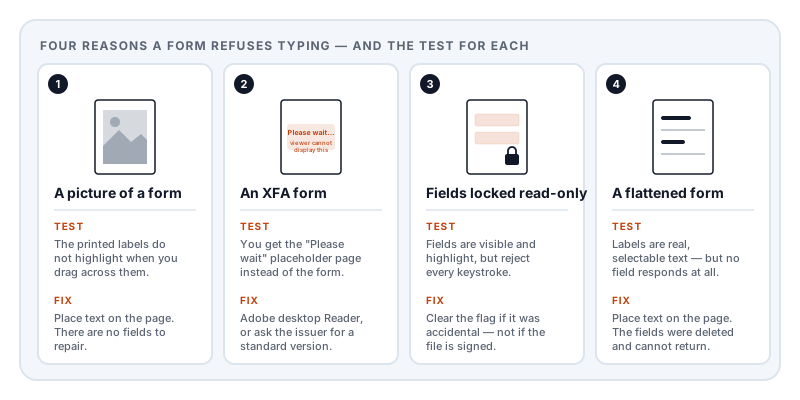
Cause 1: it is a picture of a form, not a form
This is the most common by a wide margin, especially for anything issued by a government office, a school, or a hospital.
Someone printed a blank form, scanned it, and published the scan as a PDF. What you have is a photograph of a piece of paper. There are no fields in it, because the file contains no form structure at all — just one large image per page. The lines and boxes you see are pixels, exactly like the lines in a photograph of a notepad.
How to tell: try to select the text of the form’s own labels — the printed words “Full name” or “Date of birth”. Drag your cursor across them. If nothing highlights, the page is an image and there is nothing to type into.
What to do: you cannot fill fields that do not exist, but you can place text on top of the page wherever you like. This is what people mean by “typing on” a PDF rather than “filling” it. The finished document prints identically and is accepted everywhere a handwritten form would be.
Cause 2: it is an XFA form
This is the one that produces the message people search for most:
Please wait… If this message is not eventually replaced by the proper contents of the document, your PDF viewer may not be able to display this type of document.
That purple or grey page is not an error and your download is not corrupt. It is a deliberate fallback page, built into the file by the tool that created it.
Here is the history, because it explains why this is so frustrating. In the 2000s Adobe introduced XFA (XML Forms Architecture), a completely different way of building PDF forms based on XML rather than PDF’s native structure. XFA forms can do things ordinary PDF forms cannot — grow and shrink as you type, add rows dynamically, run complex validation. Banks, tax authorities, and immigration departments adopted them heavily.
The problem is that XFA was never really part of the PDF standard. It was an Adobe extension, and when ISO published PDF 2.0 (ISO 32000-2:2017), XFA was left out entirely. It is also excluded from every version of PDF/A, the archiving standard. In practice, XFA is supported by Adobe’s own desktop products and almost nothing else — not Chrome’s built-in viewer, not Firefox’s, not the Preview app on macOS, and not the PDF viewer on any phone.
So an XFA form is essentially a document that only opens properly in one company’s software, on a desktop computer. When any other viewer opens it, the viewer finds a form layer it cannot interpret and displays that placeholder page instead.
How to tell: you see the “Please wait” page, or the form works on a desktop with Adobe Reader installed and shows nothing anywhere else.
What to do: your realistic options are to open it in Adobe’s desktop Reader, which is free; to ask the issuing organisation for a standard version, which many now provide because they field this complaint constantly; or to print the form, fill it by hand, and scan it back. Because the form content is locked inside an XML layer that other software cannot render, no third-party tool can reliably fill it — and you should be suspicious of any that claims otherwise.
Cause 3: the fields exist but are locked
Sometimes the fields are real. You can see them highlight faintly, or your cursor changes shape over them, but typing does nothing.
Every field in a standard PDF form carries a set of flags — small on/off switches stored with the field. One of them is ReadOnly. When it is set, the viewer is instructed to display the field and its current value but refuse input. It is the mechanism that makes a filled form non-editable after submission.
Forms arrive in this state for two reasons. Sometimes it is deliberate: the organisation locked the form after a signature, or published a filled sample. Very often it is an accident — whoever exported the form left the flag set on some or all fields, and nobody tested it.
How to tell: fields are visibly present and interactive-looking, but reject input. Frequently only some fields are affected, which is the giveaway for the accidental case.
What to do: if the lock was accidental, the read-only flag can be cleared. If the document has been signed or certified, changing it will break the signature — in that case go back to whoever sent it. In both cases you can also place text on top of the page instead, which leaves the underlying form untouched.
Cause 4: the form has been flattened
Flattening converts form fields into ordinary page content. The text that was in the fields is painted permanently onto the page, and the fields themselves are deleted.
This is a normal, intentional operation — it is how you make a completed form final, and it is what most “print to PDF” paths do automatically. But if someone flattens a blank form and circulates that, the recipients get a document that looks exactly like a form and has no fields whatsoever.
How to tell: it looks like Cause 1, but the label text is selectable. The page is real text and vector lines rather than a scan, yet clicking the blanks does nothing.
What to do: the fields cannot be recovered — the information about them is gone. Place text on the page, or request the original.
The ten-second diagnosis
Run these two checks in order and you will know which case you have:
- Try to select the form’s printed labels. Nothing highlights → it is a scan (Cause 1). Text highlights → keep going.
- Look at what the page shows. A “Please wait” placeholder → XFA (Cause 2). Real form content with fields that visibly respond but reject typing → read-only (Cause 3). Real form content with no interactive fields at all → flattened (Cause 4).
The workaround that covers three of the four
For a scan, a flattened form, or a locked one, the answer is the same: stop trying to fill fields, and put your text directly onto the page.
This is worth saying plainly because people assume it is somehow less valid. It is not. A PDF form’s field structure exists to make data machine-readable — so the issuing system can extract “Name: Anna Meyer” as a value. When you type on the page instead, you produce a document that looks, prints, and reads exactly the same to a human. Unless the recipient is running automated extraction, and almost none do for a form they asked you to email back, there is no practical difference.
Add text to PDF places real text at any position on the page. Where the file does have working fields, Fill PDF forms fills them properly as form data — and it flags fields it detects as frozen, so you find out immediately rather than after twenty minutes of clicking.
Both run in your browser. Forms are a category where that matters more than most: the fields on them are, almost by definition, the parts of your life an organisation has asked you to write down.
Sources and further reading
- ISO 32000-2:2017, the PDF 2.0 specification — defines interactive form dictionaries, field flags including ReadOnly, and notably omits XFA.
- ISO 32000-1:2008 — the earlier edition, where XFA appears only as an optional extension.
- ISO 19005-2, PDF/A-2 — the archiving standard, which prohibits XFA content; a useful indicator of how the format is regarded for long-term use.
- Mozilla pdf.js issue tracker on XFA support — a long-running public record of why browser viewers struggle with XFA forms.