You open a scanned document and every page is on its side. You click the rotate button, the page swings upright, you read it, you close the file. Next time you open it, it is sideways again.
Or the other version: you rotate, you save, you send it to a colleague — and they tell you it arrived sideways. On your machine it is fine.
Both are the same underlying confusion. There are two entirely different kinds of rotation in play, and the button you pressed was probably the one that does not persist.
Rotation as a view setting versus rotation as a document property
Think about zoom. When you zoom to 150%, you do not expect the document to be permanently magnified for everyone who opens it afterwards. Zoom is a property of your window, not of the file.
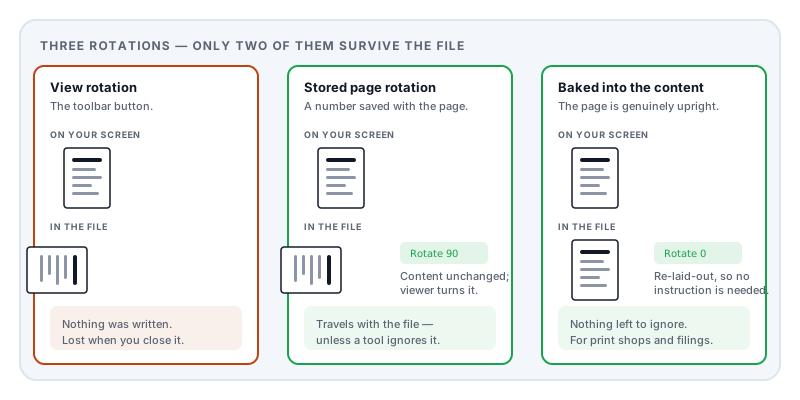
Most PDF viewers treat the rotate button exactly the same way. View → Rotate Clockwise turns the page on your screen and changes nothing in the document. Close the window and the setting evaporates with it, precisely as intended — it exists so you can read a sideways page without modifying a file you may not own.
The other kind of rotation lives inside the file. Every page in a PDF can carry a rotation attribute: a number saying how far the viewer should turn this page clockwise before displaying it. It is stored with the page, it travels with the document, and every reasonable viewer applies it.
The value is constrained to multiples of 90 — 0, 90, 180, or 270. There is no way to store “rotate by 3 degrees” as a page property, which is why a page that arrived slightly crooked from a scanner cannot be straightened this way. That tilt is baked into the image pixels, and fixing it means altering the image.
The distinction is the same one your phone makes with photographs. A camera stores the image in whatever orientation the sensor captured it and adds an orientation tag saying which way is up. Software that reads the tag shows the photo correctly; software that ignores it shows it sideways. PDF page rotation works identically, and it inherits the same class of problem.
Why a properly rotated page can still print sideways
This is the part that surprises people who thought they had solved it.
Setting the rotation attribute does not move anything. The page content — the text, the scanned image, the coordinate system it all sits in — remains exactly where it was. The file simply carries an instruction: display this quarter-turned.
Almost everything honours that instruction. But not everything. Some print drivers, some server-side processing tools, some older or unusual viewers, and some automated pipelines read the page geometry directly and never look at the rotation attribute. To those, your page is still sideways, because in terms of its actual content, it is.
So “it doesn’t stick” can mean two genuinely different things:
- It reverted on your own screen — you used the view control, and nothing was ever saved.
- It saved, but something downstream ignored it — the rotation is in the file, and one particular program in the chain does not apply it.
The first is far more common. The second is the one that catches people out when a document is going somewhere official, because the recipient’s system may not be the friendly consumer viewer you tested with.
Making rotation truly permanent
If a document is going to a print shop, a court e-filing system, an automated processing pipeline, or anywhere else you cannot test, the safest version is to bake the rotation into the page content itself. That means the page is not merely labelled as rotated — the content is genuinely re-laid-out so that the page is upright by construction, and the rotation attribute goes back to zero.
Now nothing can ignore it, because there is no instruction left to ignore.
The trade-off is that this is a real modification to the page rather than a metadata change. For a scanned page it is harmless — the image is simply placed differently. For a page of live text it is still safe, but it is a heavier operation than flipping a single number.
For everyday use — reading, emailing, archiving — the stored rotation attribute is entirely sufficient and is what you want. Reserve baked rotation for documents heading into systems you do not control.
A checklist when a page is the wrong way up
Is it the whole document or one page? A single sideways page in an otherwise upright document is almost always a scanner feeding one sheet the wrong way. A whole document sideways is usually a scanner setting or a landscape original.
Is it rotated or is it landscape? These look similar and are not the same. A landscape page is genuinely wider than it is tall and is meant to be that way — a spreadsheet, a certificate, an engineering drawing. Rotating it will not help; it will make it worse. Check whether the text runs along the long edge (correctly landscape) or the short edge (rotated by mistake).
Is it upside down rather than sideways? 180 degrees usually means a sheet was fed reversed. It is the easiest to miss when scanning a stack, and the easiest to fix.
Is it tilted by a few degrees? That is not rotation at all. The page went through the scanner crooked and the skew is in the image. It needs deskewing, which is an image operation, not a page operation.
Doing it in Lemmafour
Rotate PDF sets the stored page rotation and writes it into the file, so it persists for the recipient rather than resetting when you close the window. You can rotate individual pages or the whole document, which matters for the common case of one sheet that went through the scanner sideways.
If several pages need different treatment — some rotated, some reordered, some removed — Organize pages handles rotation alongside the rest in one pass, so you are not saving and reopening between each change.
Both run in your browser. Rotation is a small operation, but the documents that arrive sideways are overwhelmingly scans of things like contracts, medical records, and identity documents, and there is no reason those should take a round trip through someone else’s server to have one number changed.
Sources and further reading
- ISO 32000-2:2017, the PDF 2.0 specification — defines the page object, its rotation entry, the constraint that the value be a multiple of 90, and how rotation is inherited through the page tree.
- ISO 32000-1:2008 — the earlier edition, specifying the same page geometry and the boxes (MediaBox, CropBox) that determine whether a page is genuinely landscape.
- CIPA DC-008, the Exif specification — the photographic orientation tag that behaves the same way, and the closest everyday analogue to PDF page rotation.