Redacting a PDF means permanently removing sensitive text and graphics from the file itself — not hiding them behind a box that can be moved or copied. Lemmafour’s secure redaction removes the content in your browser and verifies the removal before export, so the document never leaves your device.
Use Secure redaction when you need to remove sensitive information from a document before sharing it. The workflow is:
- Open Secure redaction.
- Use LOAD PDF in the top bar and open the document from your device.
- Select Redact in the toolbar and keep Secure redaction selected.
- Select the text — or draw a box over the area — that must be removed.
- Review the sanitize options, apply the redaction, and export once verification passes.
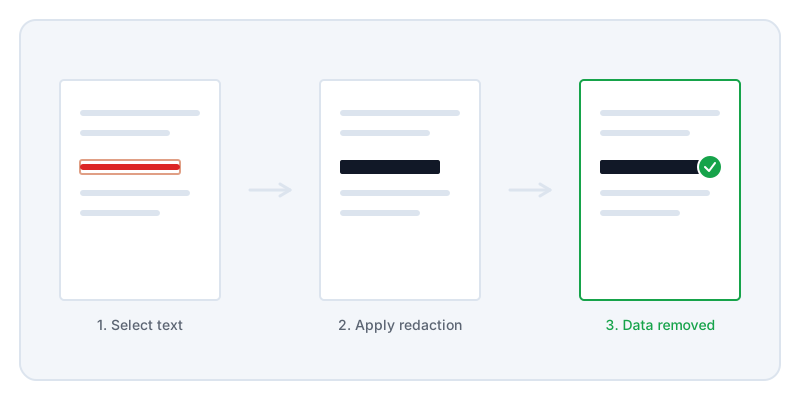
The critical difference between redaction and drawing a black box over text is what happens beneath the surface. Drawing a shape, or applying whiteout, only covers the visible pixels on the screen. The text itself remains in the file. If you send that file to someone else, they can highlight the black box, copy the hidden text, and paste it elsewhere to read it.
Secure redaction removes the underlying data. When you apply a redaction, your browser edits the structure of the document to delete the characters and vector paths within that region. It then places a black box in that exact spot so the layout remains intact.
This distinction is important for payslips, bank statements, and legal filings. When you send these documents to a third party, you are responsible for the data you include. A proper redaction ensures you are not accidentally leaking account numbers or salaries.
You can confirm this behavior yourself. After you export the redacted file, open it in another PDF viewer and attempt to highlight or search for the removed text. It will not be there. Lemmafour even runs a second, independent PDF engine in the browser to verify the removal immediately after the redaction is applied.
Your privacy is the other half of the process. Online tools typically require you to send your document to their servers for processing. This puts your sensitive data on infrastructure you do not control. Lemmafour keeps the file on your device. All processing happens in the browser. You can check this by opening the Local - 0 sent panel while you work, or by watching the browser’s Network tab. You will see the site’s own scripts and fonts load, but your document is never transmitted.
One limitation to understand is that redaction removes page content, and the Redact tool’s sanitize options cover metadata/comment cleanup during the same operation; always verify the export by trying to select or search the removed text. Redaction is a scalpel for page content, not a global file sanitizer without those options checked.