Redaction permanently removes sensitive text and graphics from a PDF; whiteout only draws a shape on top of them, leaving the original content in the file underneath. That difference decides whether your secret is actually gone or merely hidden.
Every few months, a high-profile legal team, government agency, or corporation makes headlines for the exact same catastrophic mistake. They release a sensitive document to the public with heavy black bars over the confidential information. An hour later, journalists publish the secret text.
The immediate assumption is usually that the document was “hacked” or that a sophisticated decryption tool was used to break the redaction. The reality is always much simpler. The organization did not use redaction at all. They used whiteout. Someone drew a black rectangle over the text, saved the PDF, and sent it out.
To understand why this fails so spectacularly, you have to understand the mechanical difference between covering text and removing it.
The anatomy of a whiteout failure
A PDF is not a flat image like a photograph. It is a layered coordinate system. When a PDF reader opens a document, it reads a series of instructions. An instruction might say, “Draw the word ‘Confidential’ at coordinates X:100, Y:200 using the Arial font.”
When you open a PDF in a basic editor or an operating system preview tool (like macOS Preview or standard web browser viewers) and draw a black rectangle over a paragraph, you are simply adding a new instruction to the end of the file. The new instruction says, “Draw a black rectangle at coordinates X:100, Y:200.”
When the recipient opens the file, their PDF reader dutifully executes both instructions. First, it draws the word “Confidential.” Then, it draws a black rectangle exactly on top of it. Visually, the text is hidden. But structurally, the text is still sitting right there in the data stream.
This is what we call whiteout. It is the digital equivalent of putting a piece of tape over a printed page. To read the text underneath, the recipient does not need hacker tools. They just need to click their mouse, drag it over the black box, press copy, and paste the result into a blank text document. The PDF reader grabs the text from the bottom layer, ignoring the rectangle on top.
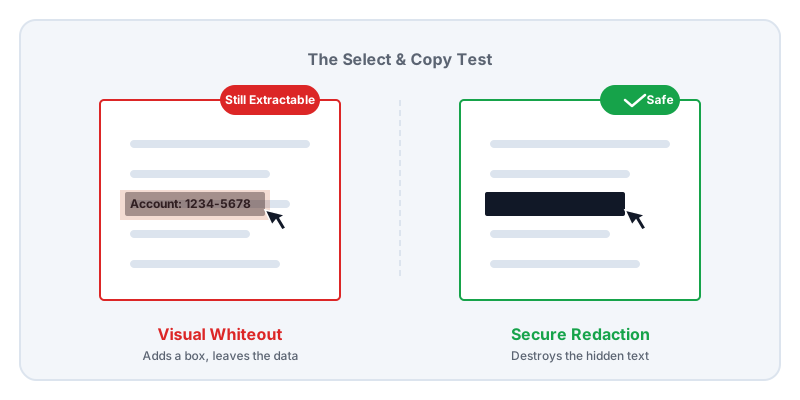
How true redaction actually works
True redaction is a destructive structural operation. It does not add new layers; it destroys existing ones.
When you use a secure redactor, the software performs a complex mathematical intersection. First, it looks at the exact coordinate boundaries of the area you marked for redaction. Then, it analyzes every single object in the PDF—every word, every image, every vector path—to see if it overlaps with that boundary.
If a line of text falls inside the boundary, the redactor removes those specific characters from the underlying text stream. If a word only partially overlaps the boundary, the redactor splits the text string, deletes the covered letters, and rewrites the remaining letters with new coordinate instructions. If an image falls inside the boundary, the redactor physically slices the image data, deleting the pixels inside the zone and re-encoding the remaining image pieces.
Finally, the redactor throws away the original PDF structure and builds an entirely new file from scratch. This ensures that the deleted data cannot be recovered from the document’s hidden revision history. When the recipient opens the properly redacted file, they cannot copy the text under the black bar because the text literally no longer exists in the file.
Crop is not redaction
A common, and highly dangerous, variation of the whiteout mistake involves the crop tool.
If you have a bank statement and you only want to share the top half of the first page, you might use a crop tool to cut off the bottom half containing your transaction history. You save the file, and when you open it, you only see the top half.
But PDF crop tools rarely delete the data outside the crop zone. A PDF crop box is just a metadata instruction that tells the viewer, “Only display the content within these specific coordinates; hide the rest.” The bottom half of your bank statement—every transaction, every balance—is still fully embedded in the file.
If the recipient opens your cropped PDF in Adobe Illustrator, a dedicated PDF editor, or simply runs a command-line script to reset the crop box, the entire page will instantly reappear. If you need to remove the bottom half of a page permanently, you must use a redaction tool to destroy the content, or an extraction tool that specifically drops unselected content during export.
How to test your own exports
You should never trust a redaction tool blindly, not even ours. Because PDF structures can be wildly unpredictable—especially when dealing with scanned documents that contain hidden OCR (Optical Character Recognition) text layers—you must verify your output before you share it.
The verification process takes ten seconds:
- The Select Test: Open the exported PDF in your standard desktop reader. Click near the black redaction bar and drag your cursor completely across it. If you see the text highlight underneath the bar, or if the cursor changes from an arrow to a text-selection cursor while hovering over the black box, the text is still there.
- The Copy-Paste Test: Press
Ctrl+A(orCmd+A) to select all the text on the page, press Copy, and paste it into a blank Notepad or Word document. Read through the pasted text. If the sensitive information appears in the raw text, your redaction failed. - The Search Test: Press
Ctrl+Fand search for the exact word you tried to redact. If the PDF reader jumps to the black box, the text is still embedded.
The Lemmafour approach
When you Redact a PDF properly using Lemmafour, you are using a true structural redaction engine. If you select Secure redaction, the browser engine removes the covered text and image content from the document structure and rewrites the file — it does not paint over anything.
But we go one step further to prevent the failures described above. After the redaction is applied, Lemmafour uses a second, completely independent PDF engine running in your browser to read the newly generated file. It actively searches the exact coordinates of your redaction zone to verify that absolutely no text or image data remains extractable in that space. You will see a verification checkmark before you even export the file.
Just as importantly, this entire destructive operation happens locally on your device. You do not have to upload your unredacted payslip or legal filing to a remote server to clean it. The engine runs in your browser, the data is stripped on your computer, and the final safe PDF is written to your hard drive.