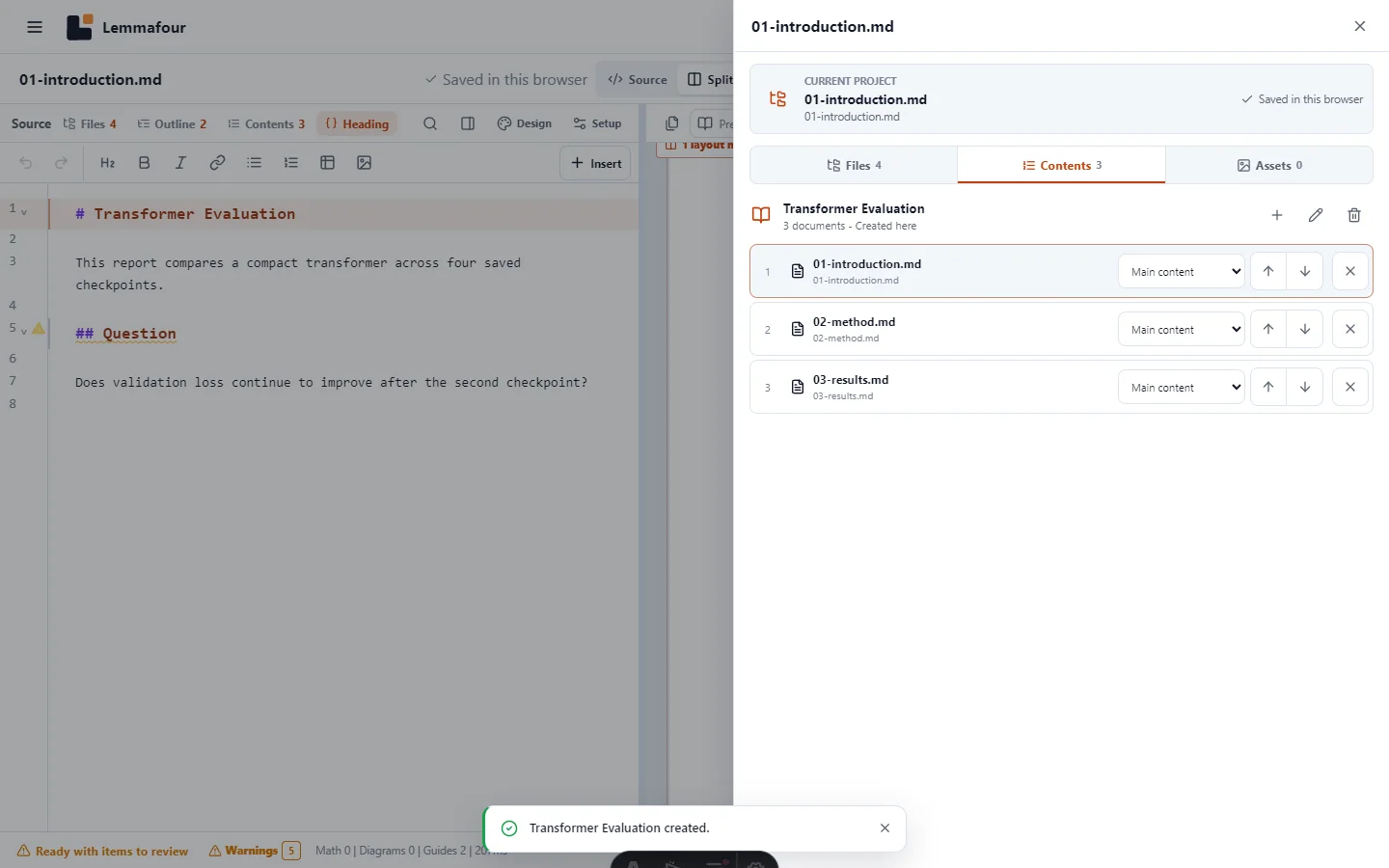
To combine several Markdown documents into one PDF, first open them as one project. Then create a Combined PDF, add only the documents that belong in it, arrange their order, preview that target, and export it. Each selected document starts on a new page.
This explicit step is important. A project folder can contain chapters, notes, a README, bibliography files, images, configuration, and drafts. Treating every source file as a book chapter would create accidental output. Lemmafour therefore separates what the project contains from what a particular combined publication contains.
Bring the project into the browser
Use the opening method that matches what you have:
- Open files for a few Markdown, Quarto, notebook, and supporting files selected together.
- Import project folder when the browser exposes folder selection.
- Open project backup for a previously exported Lemmafour project archive.
- Open a ZIP when a folder picker is unavailable or the project was sent as one archive.
- Import from public link when the source is a supported public repository.
On iPhone and iPad, a ZIP or multi-file selection is usually more portable than relying on direct folder handles. On desktop Chromium browsers, a folder handle can support direct editing where permission is available. These are different storage capabilities, but they lead to the same project model after intake.
After import, Files shows the source tree. Open a file there to edit or preview that file. Images, bibliographies, styles, data files, and configuration remain supporting project material; they do not become standalone chapters merely because they appear in the tree.
Create a Combined PDF deliberately
Open Combined PDF contents. If the project has no combined target yet, choose Create combined PDF and give it a reader-facing name such as “Research report” or “Course handbook.”
Add the documents that belong in that output. A practical order might be:
- introduction or title material;
- chapters or report sections;
- results and discussion;
- appendices.
Use the move controls to establish the exact order. Do not rely on filesystem order or filenames unless that order is also represented in the Combined PDF contents. Assigning opening, body, or appendix roles can help the publication pipeline apply the intended document boundaries.
The downloadable example contains three source documents named for easy inspection, but the combined contents remain the authoritative order.
Why project files and combined contents are separate
The distinction supports more than books. The same project can produce:
- a short client report that excludes internal notes;
- a complete archival report with appendices;
- a lecture handout assembled from selected lessons;
- separate chapter PDFs for review;
- one submission PDF in a required sequence.
You can create more than one Combined PDF in a project. Each target keeps its own name, document list, order, and roles. Editing the underlying Markdown updates every target that uses that file, while changing one target’s contents does not delete or rewrite source documents.
This also explains the preview selector. The file open in the editor and the target shown in the PDF preview are related but distinct choices. Select the Combined PDF as the preview target when you need to inspect the assembled deliverable.
Page boundaries and consistent design
Every document in a combined target begins on a new page. That is the expected behavior for separately authored chapters, reports, notebooks, and appendices. It avoids placing the next document’s top-level heading immediately after the previous document’s final paragraph.
The combined build goes through the same semantic and layout pipeline as an individual preview. Theme, typography, table handling, notebook output handling, headers, footers, branding, and other publication settings should therefore match the selected preview rather than falling back to a second export implementation.
Still review the result. A forced new document page can leave intentional white space at the end of the previous document. That is not the same as an avoidable blank page caused by an oversized figure. Use page-flow compaction only for avoidable layout breaks, not to erase the visual rhythm of the document.
Export the right output
Choose Export and select the output that matches the job:
| Output | Use it when |
|---|---|
| Current PDF | You need the file or combined target currently being previewed |
| Separate PDFs | Reviewers or recipients need one PDF per selected source, delivered in a ZIP |
| Combined PDF | The documents must arrive as one ordered publication |
For a Combined PDF, verify the selected target and order in the export sheet before creating the file. For separate PDFs, folder structure is preserved in the ZIP where possible. Neither choice silently changes the source project.
Save and recover the project
Edits are saved to the active local project according to its storage mode. The save indicator tells you whether the current revision is durable in the browser or written to a connected folder. Before clearing browser data or moving to another device, use Download project backup. Browser-local storage can survive a refresh, but deleting site data can remove browser-held projects.
The final PDF is an independent download and remains yours. Reopen it in a second viewer, check the document order and page count, and keep the source backup separately when the project matters.