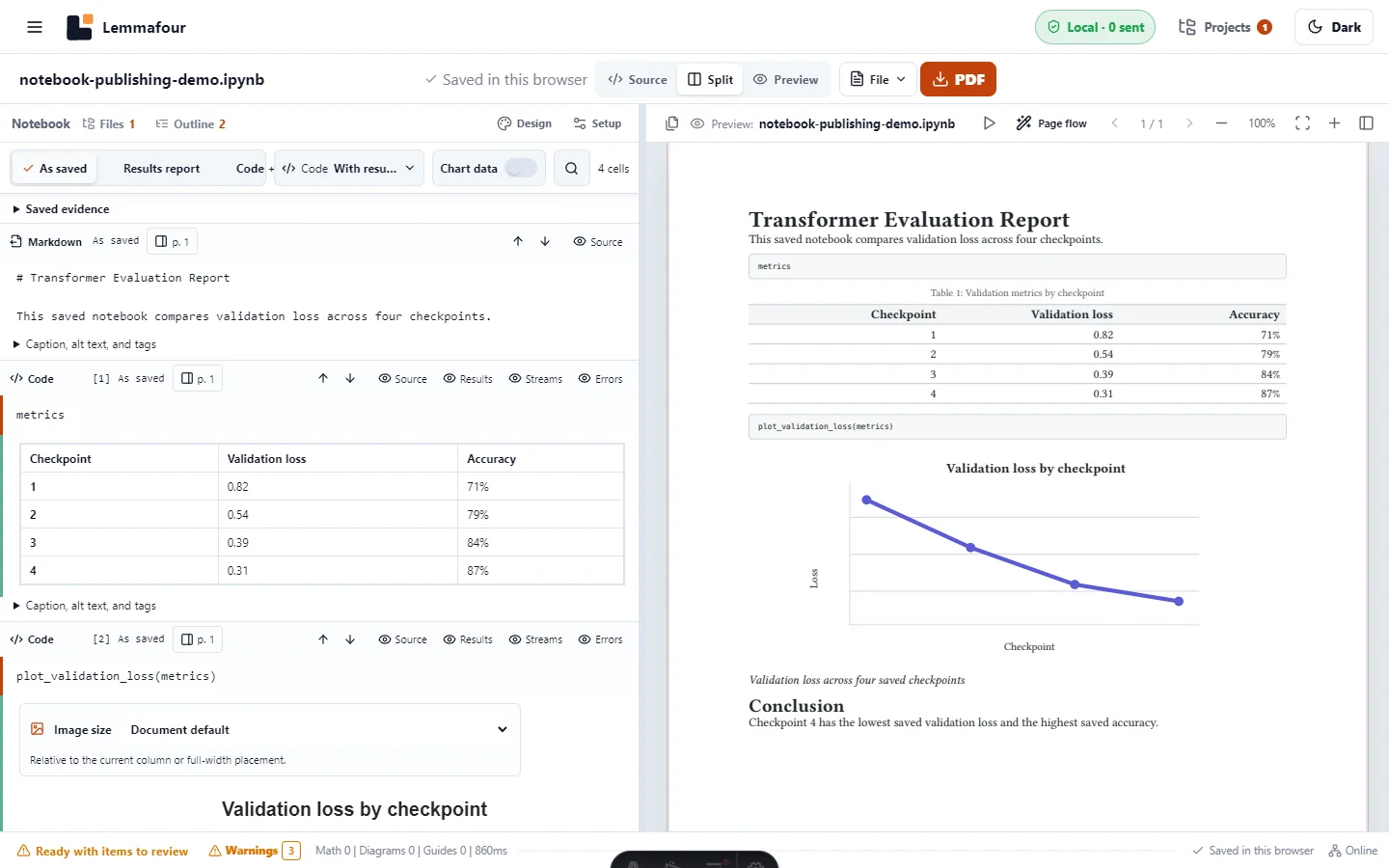
You can turn a saved .ipynb notebook into a typeset PDF directly in the browser. Open the notebook, choose a publication view, inspect the saved outputs and diagnostics, update the preview, and export the PDF. You do not need to install LaTeX, Python, Jupyter, or a browser extension.
The important boundary is that this is publication, not execution. A Jupyter notebook is a JSON document containing cells, metadata, and any outputs that were saved when the file was last written. Lemmafour reads that document and publishes what is already there. It never starts a kernel or installs the packages referenced by the code. The Jupyter Notebook Format documentation describes the same source-and-saved-output structure.
Prepare the notebook before export
Open the notebook in JupyterLab, Google Colab, VS Code, or the environment where it normally runs. Execute the cells whose results need to appear, inspect the results, and save the notebook. Then download or locate the resulting .ipynb file.
This matters because a notebook can contain code with no output, output from an older execution, or output whose execution count no longer matches the apparent order. A polished PDF cannot establish that the analysis is correct. It can only represent the evidence stored in the file.
For a reliable handoff:
- Restart and run the notebook in its normal execution environment when reproducibility matters.
- Save after the final run so charts, tables, images, text streams, and errors are embedded in the file.
- Give important figures useful alternative text or captions when the notebook format or authoring extension supports them.
- Remove secrets from source, outputs, tracebacks, and cell metadata before sharing.
Open the IPYNB file
Open Markdown to PDF, choose Open files, and select the .ipynb file. On browsers that append .txt to a downloaded notebook, Lemmafour also recognizes the common .ipynb.txt case when the content is valid notebook JSON.
The notebook opens as cells rather than raw JSON. Markdown cells remain document prose. Code cells show their saved source according to the publication settings. Supported saved outputs become text blocks, semantic tables, figures, or static charts. The PDF preview is built by the same publication pipeline used for the final export.
If another project is already open, resolve the save prompt before replacing it. Browser recovery storage is useful, but it is not a substitute for keeping the original notebook and downloading important project backups.
Choose what the PDF should communicate
The publication toolbar provides three high-level views:
| View | Best for | Included material |
|---|---|---|
| As saved | A faithful handoff | Saved source and results, subject to cell settings |
| Results report | Readers who need conclusions more than implementation | Narrative and saved outputs, with code reduced or repositioned |
| Code + evidence | Review, audit, and technical appendices | Code, streams, errors, and saved results |
These views do not mutate the original notebook. They control the publication projection. You can also change whether code appears with its result or in an appendix, include chart data where available, omit individual cells, and set captions, alternative text, tags, or image sizes for particular outputs.
Choose the view based on the reader. A model-performance report may need prose, metrics, and plots but not environment setup cells. A reproducibility appendix usually needs code and saved evidence together. An archival copy may be best left As saved.
Review diagnostics instead of ignoring them
Open Project Health before export. Notebook-specific findings identify conditions that a visual preview alone cannot settle, including saved output without an execution count, code that changed after its saved result, inaccessible images, malformed tables, unsupported rich output, and invalid notebook structure.
Warnings do not automatically block a PDF. They mean a person should decide whether the result is acceptable. Errors identify content that the current build cannot safely publish. A downloadable PDF can still be offered when a usable preview exists with non-blocking issues, but the diagnostics remain part of the evidence you should review.
For plots and images, use the document default first. Manual sizes apply to the selected output. They do not globally remove spacing. The separate page-flow compaction action only tries to reduce avoidable page breaks; it should not collapse normal heading, paragraph, or figure spacing.
Preview and export
Choose Preview or Update preview after changing publication settings. The first build may take longer because the browser loads and initializes the local typesetting engine. Later builds can reuse that initialized engine and cached assets.
Inspect at least these parts of the PDF:
- the title and heading hierarchy;
- code wrapping and line numbers;
- table headers, repeated key columns, and wide-table bands;
- figure size, caption, and alternative text;
- page breaks around large outputs;
- the final page count and Project Health status.
Then choose Export current PDF. The exported bytes are produced locally. The website still loads application assets from the network on a first visit, but the notebook bytes are not uploaded to a document-processing server.
What happens with Colab and VS Code notebooks
JupyterLab, Colab, and VS Code all use the IPYNB container, although extensions may add their own metadata and rich MIME outputs. The same file-opening flow applies to all three. Compatibility depends on what was saved inside the notebook, not on the logo of the editor that created it.
Common static outputs such as text, PNG, JPEG, SVG, HTML tables, JSON-like data, and supported chart specifications can be projected into print. A live widget that expects JavaScript state, a running kernel, or a remote service cannot be made interactive inside a static PDF. In that case, save a static image or table in the notebook before publishing.
The downloadable example below contains Markdown, Python source, a semantic table, and a saved SVG chart. It is deliberately small enough to inspect as JSON and to use as a repeatable compatibility test.