Upload limits are the most quietly stressful part of any application process. A visa portal wants your passport scan under 500 KB. A university wants transcripts under 2 MB. A court e-filing system caps the whole bundle at 10 MB, and the error message it gives you when you exceed that is almost always some variation of “File too large” with no hint about what to do next.
The good news is that PDF file size is not mysterious. In almost every case, one specific thing is responsible for the bulk of your file, and once you know which, the fix takes a minute rather than an afternoon of trial and error.
Almost all of your file is images
A PDF stores different kinds of content in completely different ways, and those ways differ in size by three orders of magnitude.
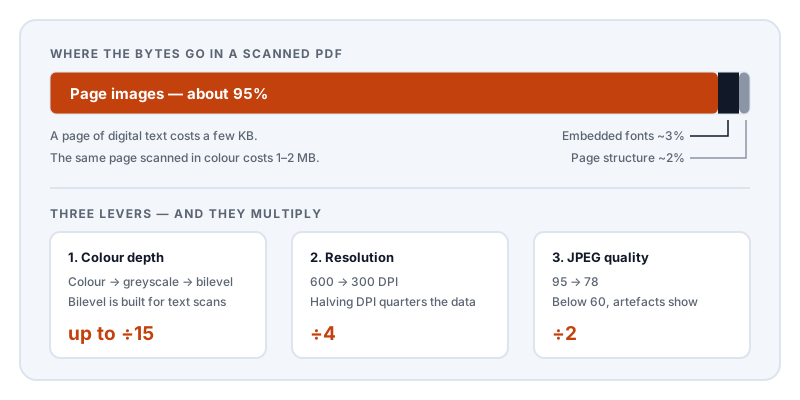
Text that was generated digitally — exported from Word, LaTeX, Google Docs, or a bank’s statement generator — is stored as instructions. The file says, in effect, “draw the characters Statement of Account at this position in this font at this size.” A full page of dense digital text costs a few kilobytes. Even the embedded font, which sounds expensive, is usually subsetted down to just the characters actually used and lands somewhere between 15 KB and 100 KB for the entire document, no matter how many pages.
A scanned page is a photograph. Nothing is stored as text at all — the whole page is one large image, and every speck of paper texture costs bytes.
The arithmetic is unforgiving. An A4 page scanned in colour at 300 DPI is 2,480 × 3,508 pixels. That is 8.7 million pixels, and at three bytes per pixel the raw image is about 26 MB. Compression brings it down, but a JPEG-encoded colour scan at reasonable quality still lands around 1 to 2 MB per page. Ten pages of that is a 15 MB file that no portal will accept.
This is why the single most useful diagnostic question is: is your PDF scanned, or was it generated digitally? If you can select the text with your mouse, it was generated digitally and it should already be small — if it is not, something unusual is going on, and we cover that at the end. If you cannot select the text, you have a scan, and the images are your entire problem.
The three levers, in the order you should pull them
Every scanned-page compression decision comes down to three independent controls. They multiply together, which is why pulling two gently beats pulling one hard.
1. Colour depth — the biggest win, and the one people forget.
Most scanned documents do not need colour. A text document scanned in colour stores three bytes per pixel to represent what is fundamentally black ink on white paper.
- Colour → greyscale cuts the raw data to a third immediately.
- Greyscale → bilevel (pure black and white, no greys) is the dramatic one. Bilevel scans use compression schemes designed specifically for scanned text — CCITT Group 4 and JBIG2 — that exploit the fact that a page of text is mostly identical white space with repeating black shapes. A text page that costs 1.5 MB in colour can land under 100 KB as a bilevel image.
The catch: bilevel destroys photographs, coloured stamps, and blue-ink signatures. Use it for typed text pages, and keep the pages carrying a photo or a seal in greyscale or colour.
2. Resolution — the one with a hard floor.
Halving the DPI quarters the pixel count, because you are halving in two dimensions. Going from 600 DPI to 300 DPI cuts the image data by roughly 75% and, for almost every document, changes nothing you can see.
Below that, be careful. Institutions generally expect scans legible at 200–300 DPI. At 150 DPI, superscripts, decimal points, and the fine print on certificates start to soften. Below 150 DPI, handwritten signatures and official stamps degrade into smudges — and a reviewer who cannot read your document will reject it just as firmly as a portal that cannot accept it.
3. JPEG quality — the fine adjustment.
Re-encoding page images at a lower JPEG quality shaves the remainder. Quality 75–80 is usually visually indistinguishable from the original. Below about 60, JPEG’s characteristic artefacts appear: faint rectangular blocks in flat areas and a shimmer of noise around letter edges — a particular problem for text, where the eye is unusually sensitive to edge quality.
A rough guide to what lands where
Approximate sizes for a single A4 text page, to help you aim before you start:
| Setting | Approximate size per page |
|---|---|
| Colour, 600 DPI | 4–8 MB |
| Colour, 300 DPI | 1–2 MB |
| Greyscale, 300 DPI | 400–700 KB |
| Greyscale, 200 DPI | 150–300 KB |
| Bilevel (G4/JBIG2), 300 DPI | 40–100 KB |
Multiply by your page count and you will know immediately whether you need one lever or all three. A 20-page bundle that must fit in 2 MB needs to average 100 KB per page — which tells you, without any experimentation, that greyscale at 200 DPI or bilevel is the target and colour at 300 DPI is not going to happen.
Leave yourself headroom
A detail that catches people out: some upload systems apply their size check to the encoded request rather than the file on disk. Base64 encoding, used by many web upload paths, inflates data by about 33%. A 1.9 MB file can be measured as 2.5 MB against a 2 MB limit.
Other systems apply the limit to your whole submission — every document together, not each file. And a few check the limit after their own server-side processing, which may add a cover page or a stamp.
Aim for roughly 70% of the stated limit. The extra effort of getting from 1.9 MB to 1.4 MB is small, and it eliminates a whole category of unexplained rejection.
Four things that make it worse
Screenshotting the pages. It feels like it should shrink things, and it converts every page — including pages that were sharp digital text — into a low-resolution image. The file often gets bigger, and the text stops being selectable and searchable, which some portals check for.
Re-compressing an already compressed file. JPEG is lossy, and its losses accumulate. Each round of compress-and-save degrades the image again, and after the second or third pass you are adding visible artefacts while saving very little, because most of the redundancy is already gone. Always start from the original scan.
“Print to PDF” as a compression step. This rasterises the whole document, and typically at a resolution you do not control. It also discards the text layer.
Scanning at the maximum setting your scanner offers. Many scanners default to 600 DPI colour, which produces an enormous file with no benefit for a text document. If you have not scanned yet, scanning correctly at 300 DPI greyscale is much better than scanning at 600 DPI colour and compressing afterwards.
When a digital PDF is inexplicably large
Occasionally you get a PDF full of selectable text that is still 30 MB. There are three usual culprits.
A high-resolution logo or letterhead image repeated on every page — some generators embed a fresh copy per page instead of referencing one shared image. A full-page background or watermark image, which behaves exactly like a scan. Or an over-large embedded font: if a font was embedded in full rather than subsetted, a large CJK typeface can add several megabytes on its own.
In each case the fix is not to downsample the whole document — the text is not the problem. It is to compress or replace the offending image, or to re-export with font subsetting enabled.
Doing this without handing over your documents
Upload limits cluster around exactly the documents you would least like to hand to a stranger: passports, bank statements, medical records, degree certificates, tax filings. The irony of the usual workflow is sharp — to satisfy a government portal’s privacy-sensitive submission, people upload their passport scan to a free compression website they have never heard of, which now holds a copy.
That copy is real. Once the file has been transmitted, its lifetime depends entirely on the operator’s retention policy, their logging, their backups, and their subcontractors — none of which you can observe.
Compress PDF in Lemmafour runs the compression engine inside your browser. You pick the file, the work happens on your own device, and the smaller PDF is written back to your disk. The document bytes are not sent to a processing server, which you can confirm yourself using the Local - 0 sent panel on the tool page or your browser’s own network inspector.
For the documents in this article, that difference is the whole point.
Sources and further reading
- ISO 32000-2, the PDF specification — defines how images, fonts, and content streams are stored and compressed within a PDF, including the DCTDecode, JBIG2Decode, and CCITTFaxDecode filters named above.
- ITU-T T.6: Group 4 facsimile coding — the bilevel compression scheme behind the dramatic size reductions for scanned text pages.
- ITU-T T.88: JBIG2 coding of bi-level images — the newer bilevel scheme, which reuses repeated glyph shapes across a scanned page.
- ISO/IEC 10918-1: JPEG — the lossy image standard whose quality setting governs the fine adjustment, and whose losses accumulate across repeated re-encoding.
- RFC 4648 §4, base64 encoding — the source of the roughly 33 percent inflation that explains some “file too large” rejections.