Blank pages in a PDF have five common causes, and they call for different responses. Two are intentional, two are accidents of production, and one is a page that is not blank at all.
First: is it actually blank?
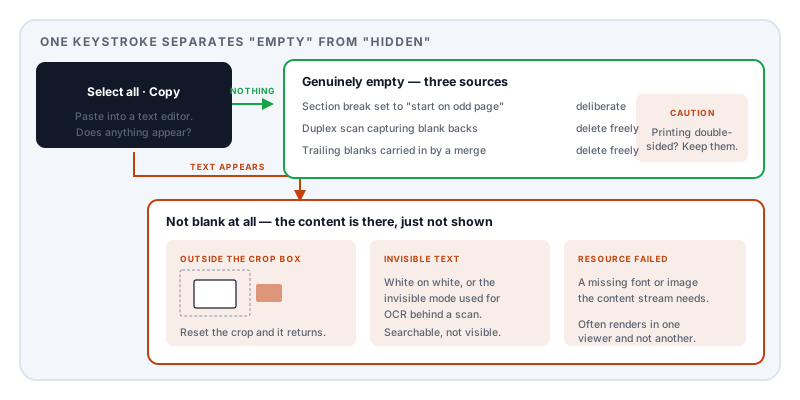
Before deleting anything, check. Go to the page, select all, and copy. Then paste into a plain text editor.
If text appears, the page is not empty. That changes everything, and there are three ways it happens:
Content outside the crop box. A PDF page has a media box defining its physical size and a crop box defining the region a viewer displays. Content positioned outside the crop box exists in the file and is not shown. Reset the crop and it reappears — the same mechanism that makes cropping unsuitable as a redaction technique.
White or invisible text. Text rendered white on white, or in the invisible rendering mode used for OCR layers behind scanned images. On a scanned document, an apparently blank page may hold a full transcription of a page that failed to image.
A resource that failed to render. The content stream references a font or image that is missing or malformed, so the renderer draws nothing. The instructions are there; the material they need is not. These pages often show content in one viewer and not another.
If it is genuinely empty
Section breaks from the source document. The commonest cause in reports, theses and books. Word processors offer a section break that starts the next section on an odd — that is, right-hand — page, so chapters open on a recto in a double-sided book. When the preceding chapter ends on an odd page, the processor inserts a blank to push the next one along.
The blank is doing a job. If the document will be printed double-sided, deleting it puts every subsequent chapter on the wrong side of the paper. If it is only ever read on screen, it is noise.
Duplex scanning. A sheet-feed scanner set to capture both sides captures the backs of single-sided originals as blank pages. Most scanner software offers blank-page detection, worth switching on at scan time — though the threshold matters, since a page holding only a signature can be discarded as blank if it is set too aggressively.
Merged documents. Combining files brings along any trailing blanks each one carried, so a bundle assembled from eight sources can acquire eight blanks in the middle.
Separator pages inserted by a print driver or a fax gateway, which sometimes end up in the saved file.
Deciding what to do
| Situation | What to do |
|---|---|
| Screen-only document, blanks from section breaks | Delete them |
| Will be printed double-sided | Leave them — they are the pagination |
| Scans with blank backs | Delete, after checking each is truly empty |
| Bundle for a portal with a page limit | Delete, then check the total |
| Page holds hidden content | Do not delete blindly — find out what is on it |
That last row deserves emphasis. If a page holds content positioned outside the crop box, deleting it removes that content — fine if you wanted it gone, a problem if you were about to submit a document you believed was complete.
Removing them
Delete pages removes specific pages and writes a new document. Organize pages is better when you are also reordering or rotating, since it does everything in one pass rather than making you save and reopen between operations.
Two checks afterwards:
The page count, against what you expect. This is the moment to catch a deletion that took one page too many.
The file size. It should go down. If it goes up, your editor appended a revision rather than rewriting the file — meaning the deleted pages are still in there, as explained here. That matters when the pages were removed for confidentiality rather than tidiness.
Preventing them
Fix it at the source. If you control the original, change the section break type from “odd page” to “next page” and the blanks stop being generated. Repairing the PDF after every export is a treadmill.
Turn on blank-page detection in your scanner software, and test its threshold against a page holding only a signature.
Check the page count after merging, before you send anything.
Sources and further reading
- ISO 32000-2:2017, the PDF 2.0 specification — the page object, the media box and crop box that determine what is displayed, and the text rendering modes including the invisible mode used for OCR layers.
- ISO 32000-1:2008 — the earlier edition, specifying the same page boxes found in most existing documents.
- ISO 19005-2, PDF/A-2 — the archival standard, which requires resources to be embedded rather than referenced, removing one cause of pages that render empty.