Most guidance about sending documents securely jumps straight to encryption. That is usually the least important part.
A PDF can leak through five distinct channels, and encryption addresses exactly one of them. Worse, they interact: fixing one in the wrong order can undo another. What follows is the order that works, and why the order is what it is.
1. Decide what genuinely must not travel
Before touching the file, be specific about what you are protecting. Not “this is confidential” but “the salary figures on page 3, the client name throughout, and the home address in the signature block”.
This sounds like a formality and it is the step that decides everything after it. Vague intent produces vague redaction. It is also the moment to ask whether the recipient needs the whole document at all — extracting the three pages they actually need is faster and safer than sanitising forty.
That instinct has a name in EU data protection law: data minimisation, one of the principles in Article 5(1)(c) of the GDPR, which requires personal data to be adequate, relevant, and limited to what is necessary. If you handle other people’s data professionally, sending less is not merely prudent, it is the legal posture.
2. Remove content — do not cover it
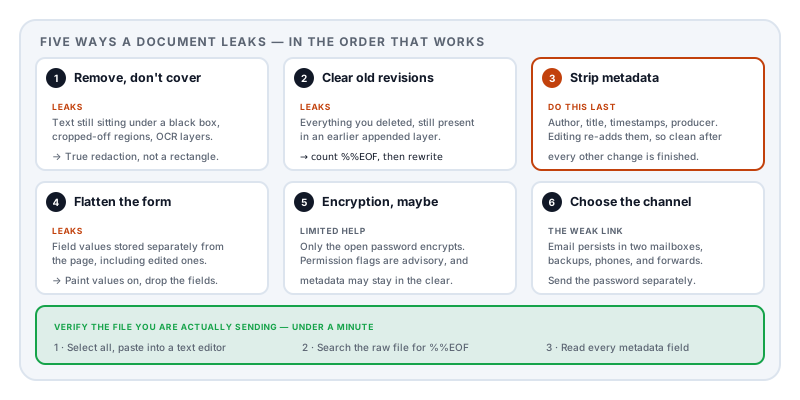
The single most common and most damaging mistake, made repeatedly by governments, law firms, and newspapers: drawing a black rectangle over text and believing the text is gone.
It is not. A PDF is a stack of drawing instructions, and adding a black rectangle adds one more instruction on top. The text underneath is still in the file, and the recipient recovers it by selecting the area and pressing copy. No tools, no skill.
True redaction removes the characters from the content stream and rebuilds the file. The distinction is covered properly in redaction vs whiteout, and it is worth reading before you rely on any redaction, ours included.
Two traps in the same family:
Cropping is not removing. A crop box tells the viewer which region to display. Everything outside it is still in the file and reappears the moment someone resets the box.
Scanned pages may carry an invisible text layer. If the document was scanned and run through OCR, there is transcribed text sitting behind the image. Drawing a box over the picture does not touch it, and it remains searchable.
3. Check nothing survives from an earlier revision
This is the step almost nobody knows about, and it defeats careful work at step 2.
Most PDF editors save changes by appending a revision rather than rewriting the file. The original bytes stay exactly where they are. So if you covered something, then properly redacted it, then deleted the page — each of those actions may have been added as a layer on top of a file that still contains the original.
The tell is counterintuitive: if you deleted content and the file got bigger, it was appended to. The mechanism is explained in why did my PDF get bigger after I edited it.
The check takes ten seconds. Open the PDF in a plain text editor and search for %%EOF. One occurrence means the file was written once. Several means earlier states are still inside it.
The fix is to produce a genuinely rewritten file — one built fresh from the current state rather than appended to — and to make sure unreferenced objects are discarded rather than carried along.
4. Strip the metadata — and do it now, not earlier
Every PDF carries a metadata record: title, author, the software that produced it, creation and modification timestamps, and sometimes keywords or a subject line left over from a template.
This routinely leaks more than the content does. An author field naming someone who was supposed to be anonymous. A title like Redundancy_List_FINAL_v3.docx revealing both purpose and origin. Timestamps that contradict a stated chronology. What PDF metadata reveals goes through it.
The ordering point matters here. Editing, compressing, converting, and merging all rewrite the file, and the tool doing the rewriting usually stamps its own producer information — sometimes restoring a title or author from the document catalogue. Clean the metadata after you have finished manipulating the file, not before. Otherwise you will verify a clean file, compress it, and quietly re-add a producer string.
One more subtlety: if you encrypt the document, metadata is not necessarily protected. PDF has a setting that deliberately leaves it readable so that indexing systems can catalogue files they cannot open. When that is used, the title, author and timestamps stay visible without the password.
5. Flatten the form, if there is one
If the document contains form fields you have filled, the values are stored as data separate from what is drawn on the page.
Two consequences. The recipient may see a blank form if their viewer does not regenerate the visible text from that data. And the field data is extractable independently of the visual page, which matters if you have edited a value — an earlier one may persist.
Flattening paints the values permanently onto the page and removes the field structure. What is displayed becomes all there is.
6. Decide whether encryption actually helps
Now, and only now, consider a password.
Be clear about what it does. A user password genuinely encrypts the content: without it, the file is unreadable. An owner password does not — it sets permission flags such as “no printing” that any reader is free to ignore, while the document opens normally for everyone. Both appear in the same dialog and both get called “password protection”. The full explanation is here.
Encryption also does nothing about steps 2 through 5. A document with text hidden under a black box is a document with text hidden under a black box, encrypted or not.
And it only helps if the password travels separately. A password in the same email as the attachment protects against nothing — anyone who has the message has both.
For genuinely sensitive material, encrypting the transfer is usually stronger and better understood than encrypting the document: an end-to-end encrypted messaging channel, or a link-based transfer with an expiry and a separately-communicated code.
7. Think about the channel
Email is the default and the weakest link. Messages sit in two mailboxes indefinitely, get backed up, sync to phones, and are forwarded without thought. “Please delete this” is not a control.
Before sending, ask three questions. Does the recipient need to keep this permanently, or just read it once? How many systems will hold a copy on the way? And if this were forwarded to the wrong person in six months, what happens?
8. Verify — three tests, under a minute
Do not trust any tool, including this one. Verify the file you are actually about to send, after every other step is finished.
- The text test. Open it, select all, copy, paste into a plain text editor. Read what appears. Anything you redacted must not be there. This catches whiteout, crop-not-removed, and OCR layers in one go.
- The revision test. Search the raw file for
%%EOF. More than one occurrence means earlier states survive. - The metadata test. Open document properties and read every field — title, author, subject, keywords, producer, and both timestamps.
If all three are clean, send it. If you changed anything to fix a failure, run all three again, because the fix rewrote the file.
Where the tools you use fit in
There is an awkwardness worth naming. The usual way people sanitise a confidential document is to upload it to a free website — which means handing the unsanitised original to a stranger in order to clean it. The document you were protecting has already been transmitted, in its worst state, before any of the above happened.
Where online PDF tools send your files covers the general question. The specific reason Lemmafour runs its engine in your browser is this exact sequence: the document you are cleaning is the document you least want to send anywhere, and the cleaning should not require sending it.
The tools relevant to the steps above — extracting only the pages needed, deleting pages, flattening a form, rewriting the file — all operate locally, and you can confirm that in your browser’s network inspector rather than taking our word for it.
That said, the verification steps in section 8 are the ones that actually protect you. They work regardless of which tool produced the file, and they are the reason to do them yourself.
Sources and further reading
- ISO 32000-2:2017, the PDF 2.0 specification — defines content streams, incremental updates, the document information dictionary, XMP metadata, form field values, and the encryption handler, including the flag that leaves metadata unencrypted.
- Regulation (EU) 2016/679 (GDPR), Article 5 — the data minimisation principle underlying step 1.
- Müller, J., Ising, F., Mladenov, V. et al., Practical Decryption exFiltration: Breaking PDF Encryption, ACM CCS 2019 — why PDF encryption protects confidentiality but not integrity.
- Mainka, C., Mladenov, V., Rohlmann, S. et al., Shadow Attacks: Hiding and Replacing Content in Signed PDFs, NDSS 2021 — how PDF’s layered structure lets displayed content diverge from approved content.
- CPR: Corrupted PDF recovery algorithm for digital forensic investigations, Forensic Science International: Digital Investigation — the object-carving techniques that recover prior document states.