The document looks perfect on your monitor. You print it, and the logo is soft, the photograph is mushy, and the scanned signature has visible steps along its edges.
Nothing went wrong at the printer. You were looking at the file at about a quarter of the detail the printer needs, and your screen was hiding the problem.
The number that explains it
A typical screen shows something in the region of 100 pixels per inch. A modern office printer lays down 300 to 600 dots per inch, and a commercial press more.
So an image that fills a six-inch space on your screen is being shown with roughly 600 pixels of width. Printed at that same six inches on paper, the printer wants around 1,800. If the image only has 600, the printer spreads each pixel over three dots, and you can see it.
The quantity that matters is effective DPI — how many pixels the image actually has, divided by how many inches it occupies on the page:
Effective DPI = image pixel width ÷ printed width in inches
A 1,200-pixel-wide image placed across 6 inches gives 200 effective DPI. The same image placed across 3 inches gives 400. The image did not change; the placement did. This is why the same logo can print beautifully in a letterhead and badly on a poster.
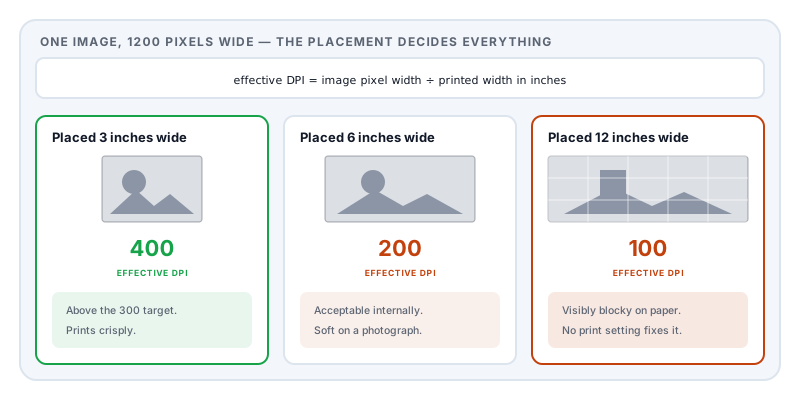
Useful targets: 300 effective DPI for photographs and anything with fine detail, 200 as an acceptable floor for internal documents, and below 150 things visibly degrade.
Why the text stays sharp
Because text usually is not an image.
Digital text is stored as font outlines — mathematical curve descriptions that the renderer scales to whatever size is needed. At 100 DPI or 2,400 DPI they are drawn precisely, which is why a text-only PDF prints crisply at any size and takes almost no space in the file.
That is also the diagnosis: if your text is blurry, your text is not text. The page is a scan, or a screenshot, or was exported with text converted to an image. Whether a PDF contains real text takes one keystroke to check.
The usual causes
A screenshot used as an illustration. Screenshots are captured at screen resolution — often around 100 DPI equivalent. Printed at any reasonable size, they are already below the floor. Where possible, export the underlying artwork rather than photographing the screen.
An image pulled from a website. Web images are deliberately small. A 600-pixel product photograph is right for a web page and wrong for a printed brochure.
Over-compression. Aggressive compression downsamples images to a target resolution and discards the rest permanently. This is the most frustrating cause because the file looked fine when you compressed it — you were checking on screen. If you are compressing to meet an upload size limit, keep an uncompressed original.
A low-resolution scan. Scanning at 150 DPI to keep the file small produces a document that cannot print well, and no later processing recovers it.
Scaling up at print time. Printing an A5 document onto A4 with “fit to page” enlarges everything, halving the effective DPI.
Upscaling in an editor. Enlarging an image before placing it does not add detail; it interpolates. The file gets bigger and the print does not improve.
The five-second test
Zoom to 400% on screen and look at the image.
At 400%, your display is showing roughly the level of detail a 300 DPI printer will reproduce. If it looks soft, blocky or stepped at that zoom, it will look the same on paper. If it looks sharp at 400% and still prints badly, the problem is in the print path rather than the file — try a different printer or driver, and check that “print as image” is not switched on, since that rasterises everything at whatever resolution the driver chooses.
Fixing it
Replace the image with a higher-resolution version. The only real fix. Go back to the source — the original photograph, the vector logo, the artwork file.
Use vector artwork where it exists. Logos, diagrams and charts are frequently available as SVG or PDF, which scale perfectly and are usually smaller than a high-resolution raster. This is the single best change for anything with lines and text in it.
Place images smaller, if you cannot get a better source. Halving the printed width doubles the effective DPI.
Re-export from the source document with a higher image resolution setting rather than trying to repair the PDF.
If you must compress, do it knowingly. Compress PDF lets you control how far, and the size-limit article explains which lever costs you the least quality. Keep the original.
The tension worth naming
Print quality and file size pull in opposite directions, and most people meet this problem while trying to satisfy both — a print shop wanting 300 DPI and a portal wanting under 5 MB.
When both constraints are real, the way out is usually not a compromise setting but a different decision: convert raster logos and diagrams to vector, drop images that are decorative rather than informative, and reserve the resolution budget for the pages that carry detail. A document where two pages are high-resolution and thirty are text will comfortably satisfy both.
Sources and further reading
- ISO 32000-2:2017, the PDF 2.0 specification — image XObjects, their pixel dimensions, and the transformation matrix that determines printed size.
- ISO/IEC 10918-1: JPEG — the lossy image standard whose downsampling discards detail permanently.
- ISO 15930-8, PDF/X-4 — the print-production standard, which sets expectations for image resolution and colour in commercial printing.
- ITU-T T.6 — Group 4 coding, the bilevel scheme that keeps scanned text sharp at small file sizes.